


under "My Business" on my left sidebar and I used this tip I'm about to show you! You will need either a photobucket account or you can use tinypic to host your image. Upload your image and grab the HTML code. Under Design click "Add a Gadget" on the side you want to add your new graphic...

Choose the "HTML/Javascript" Gadget...

Paste your HTML code in the box:

Click on "Rich Text"

and you will see your graphic, then highlight it...

while the graphic is highlighted hit the little world link button..
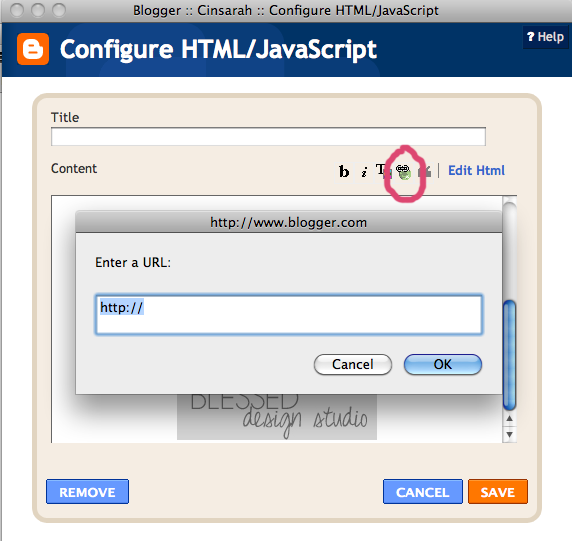
Enter the URL where you want your new graphic to re-direct
when clicked on. Click OK then SAVE and then test
you new graphic by clicking on it on your blog page to see if it worked!
It should work! It has always works for me and I hope it
works for you too and makes your blogging life a little easier! :)
If you would like to view more of my blogging tips just click that
Tutorials button up on top and you will find a couple more!










Thanks for the tutorial! Very helpful.
ReplyDeleteThis is helpful! Thanks so much.
ReplyDeleteGreat info friend. You amaze me with your knowledge of all things HTML. :)
ReplyDeleteVery helpful! New follower with a question for you....how did you post pics of the process?? I've never been able to figure out how to save the entire screen image in order to share a tutorial like this. Can you help a girl out :)
ReplyDeleteThis is great! I have been wanting to know how to do this. Definitely going to refer to this post next time. Thanks, girl! :)
ReplyDeleteI am always on the search for how to do things on my blog. Thanks so much for the tutorial! I'm going to check out more on your blog after I "follow" you! Thnx!
ReplyDeleteBlessings,
Cindy
Thanks for visiting me & leaving such a sweet comment! I love your name too! LOL! Have a wonderful rest of your week!
ReplyDeleteBlessings,
Cindy
Thanks! This helps me a lot!!
ReplyDeleteFound you through a link party!
http://thetaylorhouse-chrissy.blogspot.com/
Awesome! I've always wanted to know how to do that :). Thanks for the tutorial!
ReplyDeleteI will have to try this when I get home! Thanks for the tip!
ReplyDeleteOh My this is so useful! I really needed to know this. I am your newest (200th) gfc follower, Karima
ReplyDeletewww.karimascrafts.com
OMG THANKS SO MUCH!! I'm just starting a blog and am clueless to all the in's and out's haha...thanks again!
ReplyDeleteI did it!! Thank you so much Cindy!!
ReplyDeleteBlessings,
Cindy
Great tutorial! Thanks for linking up with us at Show & Share! Can't wait to see what you link up this week!
ReplyDeleteMarie
mylilpinkpocket.blogspot.com
Happy Monday, Cindy! Once again, your tutorial here proved simple and invaluable! I couldn't get this to work using a tip on another site...should have just checked here first! Hope you're feeling better!
ReplyDelete